Follow your projects as a client
With a client account you see every project your modelers assign to your company: its status, its savings and its report.
On this page
Get your account
- Your modeler adds you as a contact of your company and sends you an invitation email.
- Follow the email’s steps to sign up at inversehub.com with the same email address, and confirm it.
- To sign in, choose I’m a client on the sign-in page.
Your Home page
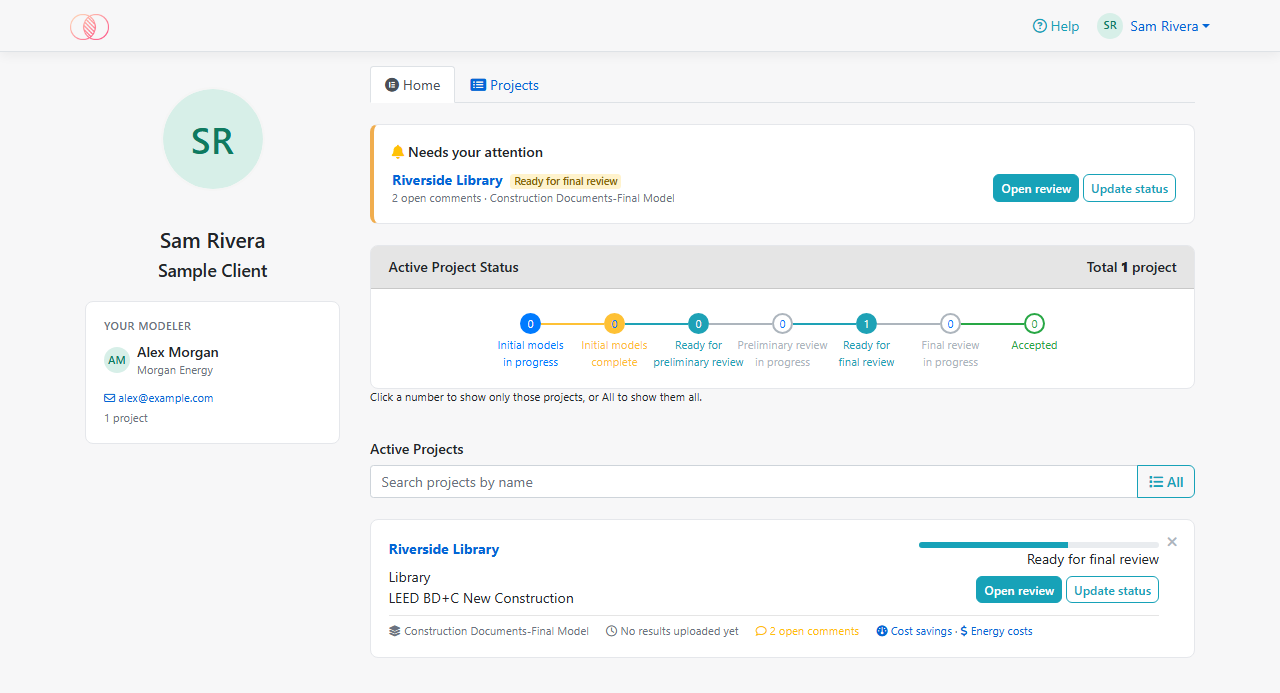
- Your modeler shows who models your projects, with their company and email.
- Needs your attention lists the projects ready for your preliminary or final review, with their open comments. Select Open review to read the report, or Update status when you’ve finished.
- Active Project Status counts your projects by status. Click a number to show only those projects, or All to show them all again.
- Active Projects lists them. Type in the search box to find one by name.
- On a project card:
- Open review (or the project name) opens its report, the same one reviewers see, with Download PDF;
- Update status changes the project’s status (see below);
- under the building type is the rating system. A parametric project shows Parametric Analysis instead, or Base Design Only when its current phase reports one design with no ECMs;
- the line at the bottom shows the modeling phase, when the results were uploaded and the open comments, with links to the Cost savings and Energy costs. A parametric project has no baseline to save against, so it shows only Energy costs, for its base design;
- the × in the top-right corner removes the project from your Home, and from Needs your attention. Nothing is deleted. Select Undo in the note that appears to bring it straight back, or its pin on the Projects tab later.
- The Projects tab lists all your projects, including the ones you’ve hidden from your Home. See Your Projects tab.
Your Projects tab
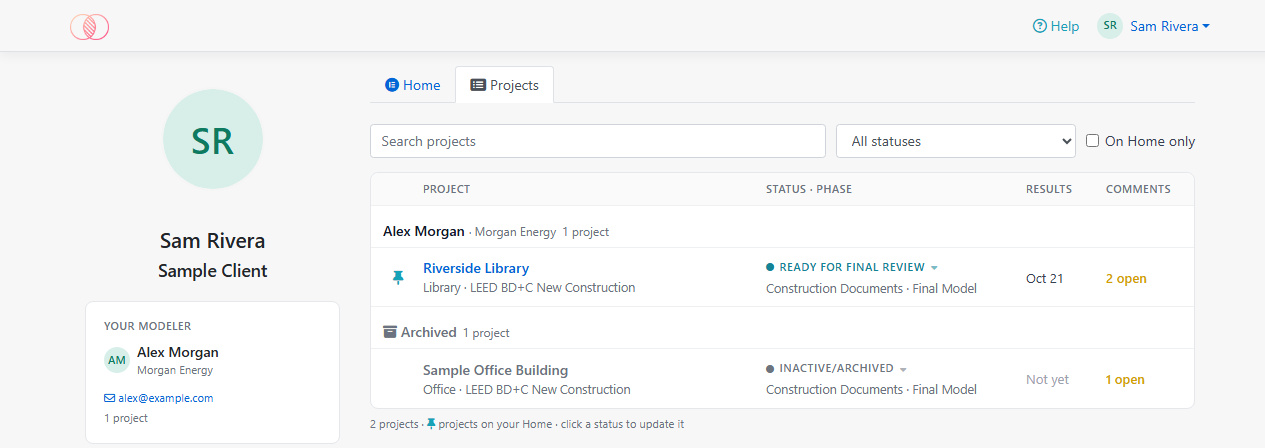
- Projects are grouped by modeler. Projects your modeler has archived aren’t listed, and their reports no longer open.
- Type in Search projects to find a project or a modeler. Choose a status, or tick On Home only, to narrow the list.
- Each row shows the project’s building type and rating system (or Parametric Analysis or Base Design Only, as on the Home cards), its status and phase, when results were uploaded, and its open comments. Design alternatives are listed under their project.
- Select a project’s name to open its report.
- The pin shows whether a project is on your Home: select it to hide the project there, or to show it again.
- Click a project’s status to update it.
Update a project’s status
- Select Update status on the project’s card or in Needs your attention, or click the project’s status on the Projects tab.
- Choose the new status. Tick Email the modeler about this change to let them know. Only your modeler can archive a project.
- Select Save. Your Home page shows the new status right away.
Comment on a report
Signed in with your client account, you can always comment on your projects, with no code:
- Open the report.
- Point to the value you want to comment on and click the comment icon that appears next to it. On a phone, tap the value.
- Type your comment and save it.
When you’ve finished, select Send my comments to the modeler on the Comments tab. See Send your comments to the modeler. You get an email when the modeler replies or resolves a comment.