Share and handle comments
Share a phase as a link, collect comments, answer them, and send a PDF.
On this page
Three ways to share
| You want them to | Do this | They need |
|---|---|---|
| View and comment | Copy Link at the top of the project page, then send the link | Nothing. Anyone with the link can view it, and comments after confirming their email with a code. They can pass the link on. |
| Comment, invited by you | Email them an invitation from the Project Team tab | The invitation’s Access Report button: they comment without a code. No account. |
| Follow all their projects | Invite your client’s contacts from the Contacts tab | An InverseHub client account. See Clients. |
The link always shows the phase currently selected under Modeling Phase on your project page. If you switch to another phase later, people with the link see that one.
Choose who can comment
Your client, signed in, can always comment on their projects, with no extra step. For everyone else, the Copy Link dialog asks Who can comment through the link. Your choice is saved as soon as you pick it, and applies to the project’s link wherever it was sent:
- Anyone with the link: they confirm their email with a code. New projects start here.
- My client and invited reviewers: the people on the Project Team tab, from their invitation or with a code sent to the email they were invited with.
- My client only: everyone else sees View only and can’t add comments. Comments already made stay on the Comments tab.
Invite people to comment
- On the project page, open the Project Team tab.
- Select Add from Contacts and choose the people. Add new people on the Contacts tab of your Home page first.
- Select their cards (click a card to select it), then Email Invitation.
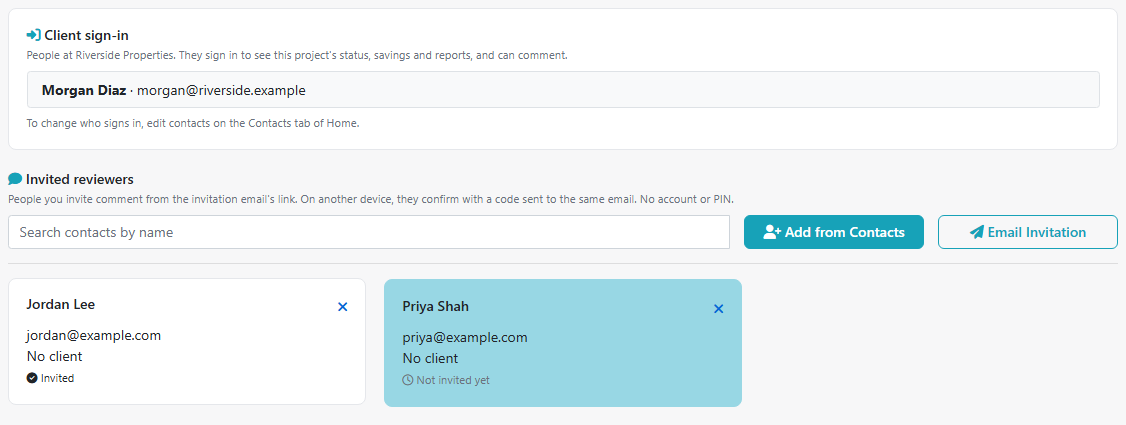
Each person gets an email whose Access Report button lets them comment right away, for 90 days. On another device, or later, they confirm the email they were invited with by a code, so there’s no PIN to keep. Their card then shows Invited. With Anyone with the link, an invitation is optional.
Answer comments
Reviewers comment on a table cell. A comment icon then appears in that cell, and the Comments tab lists every comment of the phase. When a reviewer or client selects Send my comments to the modeler, you get one email listing their open comments, with a link to the project. Projects with open comments are also listed under Needs your reply on your Home tab.
- Select the comment to open it.
- Type your reply and select Resolve to close it, or keep it open.
- Reopen brings back a resolved comment, with your reply kept.
A general comment, on the whole report rather than one value, appears first on the Comments tab. Select Reply or resolve under it to answer it the same way.
The person who wrote the comment gets an email with your reply when you save a new or changed reply, and when you resolve the comment. Each comment shows the name and email its author confirmed.
Download a PDF
Select Download PDF at the top of the project page. The file is named “Project – Phase – date”. It shows the same sections as the review page, including the charts and cards you’ve switched on.
Choose what reviewers see
- Charts: each monthly chart has a Shown / Hidden switch.
- Unmet Load Hours: hidden until you switch it on.
- Phase: reviewers see the phase selected on your project page. Select the phase to share before you send the link.
Next: What reviewers see