Read and upload results with SimReader
SimReader reads your baseline and proposed reports, shows the results for you to check, then uploads them to a phase of your InverseHub project.
On this page
The Project page
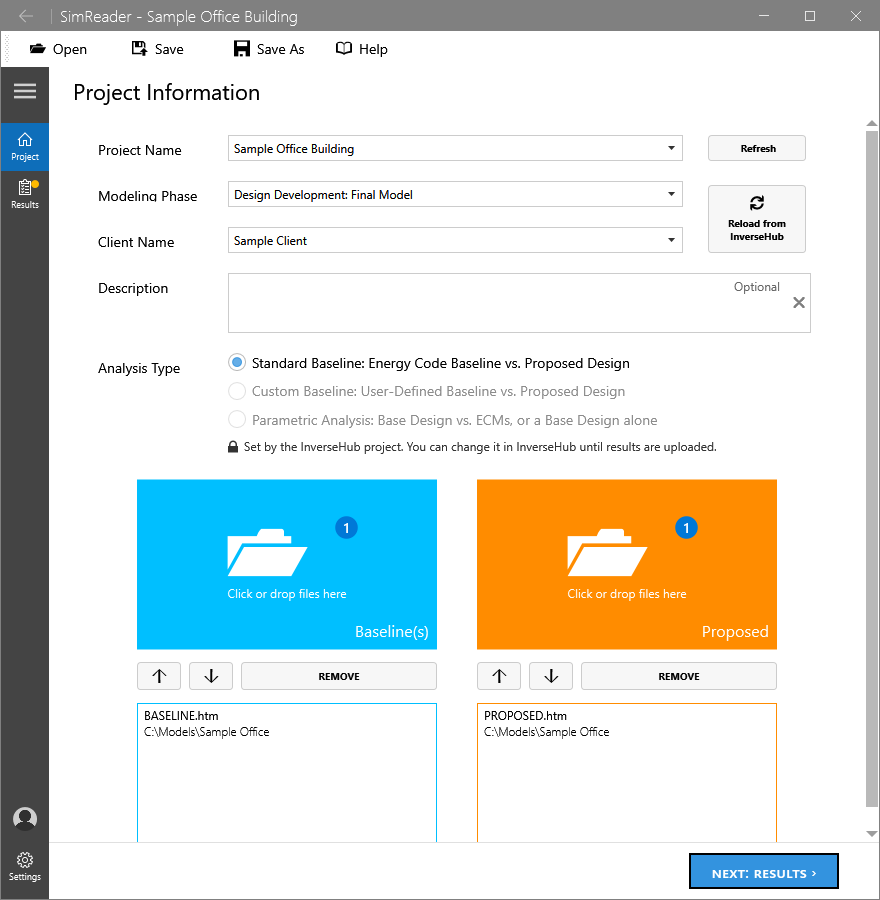
- Project Name: your InverseHub projects, pinned ones first (archived ones aren’t listed). Refresh reloads the list. To start a project without leaving SimReader, choose + New InverseHub project… at the end of the list: enter its name, client, description, analysis type and first phase, then select Create Project. It’s created on InverseHub right away, counts as a new project on your plan, and is chosen here, ready for your upload.
- Modeling Phase and Client Name: filled in from InverseHub. Reload from InverseHub fetches them again. If you change the client here, the upload changes it for every phase of the project.
- Analysis Type: set by the project you choose under Project Name, and locked. If SimReader had another type selected, it switches and tells you, so check that your files are in the right lists. To change a project’s type, see Change the analysis type. With no project chosen, for example when you only read results, you can pick any type.
- Files: drag
.SIM,.htmor.htmlfiles onto the tiles, or select a tile to browse.
Which files go where
| Analysis type | Left tile | Right tile |
|---|---|---|
| Standard or Custom Baseline | Baseline(s): one or more baseline runs. Several runs (such as the four orientations) are averaged. | Proposed: one file. If you add several, they’re averaged too. |
| Parametric Analysis | Base Design: one file. | ECM(s): one file per measure, numbered in list order. Leave it empty to report the base design alone. |
The order matters. The first file in each list supplies the utility rates, the DOE-2 or EnergyPlus version and the unmet load hours. Use the up and down arrows, or drag a file within its list, to reorder. Remove takes the selected files off the list.
Select Next: Results when the files are in place.
The Results page
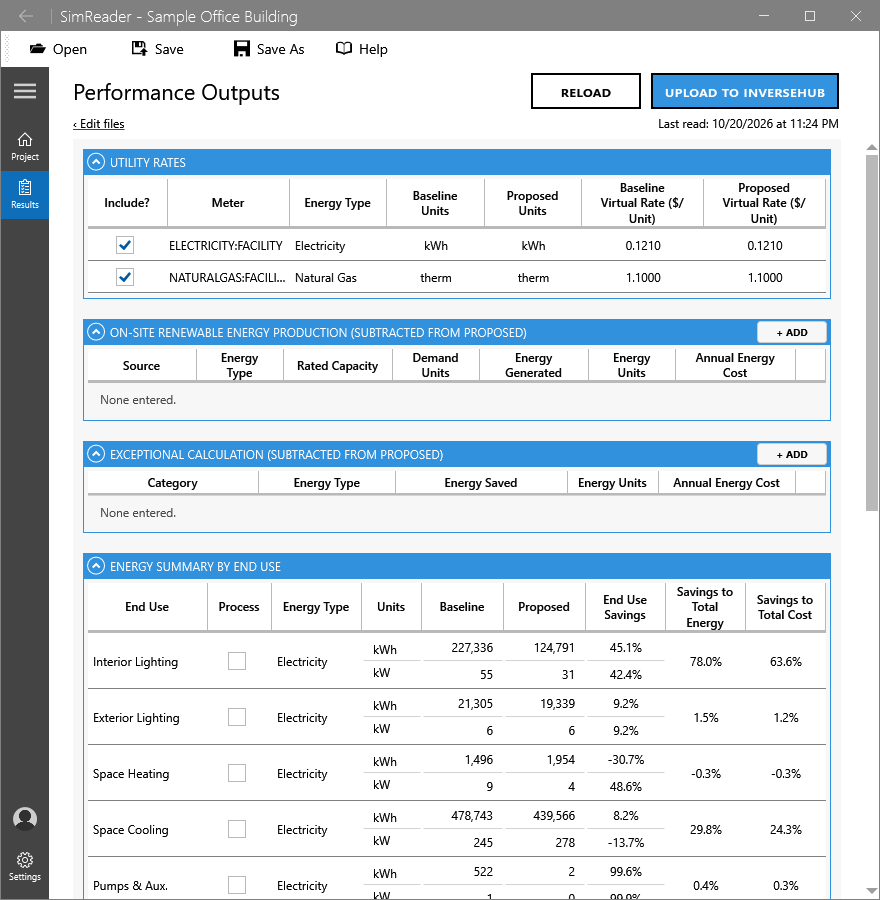
SimReader reads the files as you arrive, and again whenever the file list changes or a rerun rewrites them (see When you rerun the model). Reload reads them again. ‹ Edit files goes back to the Project page.
Check each section before uploading:
- Utility Rates: the rate of each meter in each design. Untick Include? to leave a meter out. If the baseline and proposed rate names differ, SimReader warns you after reading.
- On-Site Renewable Energy Production and Exceptional Calculation: select + Add to enter them. They’re subtracted from the proposed design. The annual energy cost is calculated from the energy and the proposed design’s rate until you type your own.
- New Off-Site Renewable Energy Production: electricity from new off-site renewable systems contracted for the project, as Tier 2 new off-site or community renewable energy. Select + Add and enter the source, the procurement, the energy and its grid region. With Same as the project, InverseHub uses the grid region in the project’s General Information. These rows count only toward the GHG emissions of LEED v4 with the 2024 energy update, so they aren’t in SimReader’s totals. See LEED and other programs.
- Energy Summary by End Use: energy, demand and savings by end use. Tick Process for end uses that are process loads.
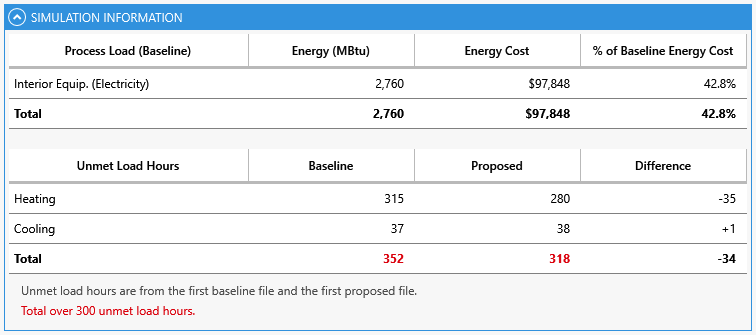
- Total Energy Performance and Simulation Information: totals, process load share and unmet load hours. A total over 300 unmet hours is shown in red.
When you rerun the model
SimReader watches the report files it read. When a run rewrites them, it waits until the run is done, then reads them again by itself: Last read says “after the rerun”, and if you’re in another program, SimReader’s taskbar button flashes. Nothing is uploaded until you select Upload to InverseHub.
The Changes since panel under the buttons is a table of Before, Now and Change:
- the energy cost savings and energy savings, always;
- each design’s energy cost and use, the unmet load hours and each end use (in its own units), when they changed;
- for a parametric run, the base design’s energy cost and each ECM’s savings, when they changed.
Changed values under Now are tinted. The line under the table says which files changed, what didn’t change, and when InverseHub still has the results you uploaded before.
Changed cells in the tables are tinted: hover over one to see its value before. An end use’s share of the total isn’t tinted, because it moves with any change.
Compare with chooses what the results are compared with: Before this rerun (what you saw before you left SimReader to rerun the model), Last upload, or an earlier read. Hide hides the panel and the tints, and Show changes next to Last read brings them back. The last upload is saved in the .ine file.
If a rerun’s file can’t be read, for example because the simulation stopped with an error, SimReader keeps the results you had, turns off Upload to InverseHub and says why in red under the buttons. Rerun the model, or select Reload once the file is complete.
Your Include? and Process ticks and the ECM names you typed are kept when the same files are read again. To read the files only when you select Reload, untick Read the results again when a report file changes in Settings.
Upload to InverseHub
- Select Upload to InverseHub. You need to be signed in (Settings > Sign in).
- If the phase doesn’t exist on InverseHub yet, SimReader asks whether to create it. If it already has results, SimReader asks before replacing them. A new phase doesn’t count as a new project on your plan.
- When the upload is done, select Copy Review Link to send the report to your client or reviewers, or Open in InverseHub to open the project, already signed in. On the project page in InverseHub, refresh to see the new results.
The upload also fills Simulation Program and Weather File in the project’s Energy Model Information.
Open InverseHub from SimReader
Select InverseHub on the toolbar to open a page in your browser, already signed in: This project (the one chosen on the Project page), Home, Projects, Subscription or Account settings. You can edit there as usual, without signing in again.
- With Remember me ticked, the browser stays signed in too. Without it, the browser’s sign-in ends when you close the browser.
- Signed out of SimReader, the menu offers Sign in…, Create a free account and the InverseHub website.
- If you change your password on InverseHub, SimReader says Sign In Again the next time it starts, on every computer where you stayed signed in.
Save your SimReader project
Use Save or Save As (Ctrl+S, Ctrl+Shift+S) to keep the file lists, the entries you added and the results, with the unmet load hours, in a .ine file. Open (Ctrl+O) brings them back later.
After the upload: split an end use
Simulation programs have a fixed set of end uses. To report part of one separately, for example the parking garage fans inside miscellaneous equipment:
- In InverseHub, on Energy Summary by End Use, select Split an end use (+).
- Choose the end use to split, tick Process load if the new end use is one, and enter its consumption and demand.
- Select the new end use’s name later to edit or delete it.
Splitting isn’t available for Parametric Analysis projects.