Projects and phases
A project holds one building’s results, phase by phase, from Schematic Design to Post-Construction.
On this page
Choose the analysis type
You choose it in New Project. SimReader takes it from the project when you choose the project there.
| Analysis type | Use it for | First tab of the project |
|---|---|---|
| Standard Baseline: Energy Code Baseline vs. Proposed Design | Code compliance and LEED, against the baseline an energy code defines | Summary Statement |
| Custom Baseline: User-Defined Baseline vs. Proposed Design | Two designs compared: a baseline you define, such as an existing building or an earlier design, and the proposed design | Summary Statement |
| Parametric Analysis: Base Design vs. ECMs, or a Base Design alone | Energy conservation measures compared with a base design, or one design reported on its own | Base Design |
One design only? For a report of one design, such as for SEDI, choose Parametric Analysis and upload just the base design, with no ECMs. The review page and the PDF then show that design alone, with no savings. A baseline project always compares two different designs.
Change the analysis type
On the Projects tab, open the project’s menu (⋮), select Change Analysis Type, choose the type and select Save. If results are already uploaded, upload each phase’s results again from SimReader with the new type, then add the conclusion again. The existing results were read for the old type.
Your plan’s project limit
Each plan allows a number of new projects a month (2 on the free Starter plan; Business has no limit). The Plan box on your Home tab, and New Project on the Projects tab, show how many you have left. See Subscription plans.
Your Home tab
Your Home tab shows what needs you and where your pinned projects stand.
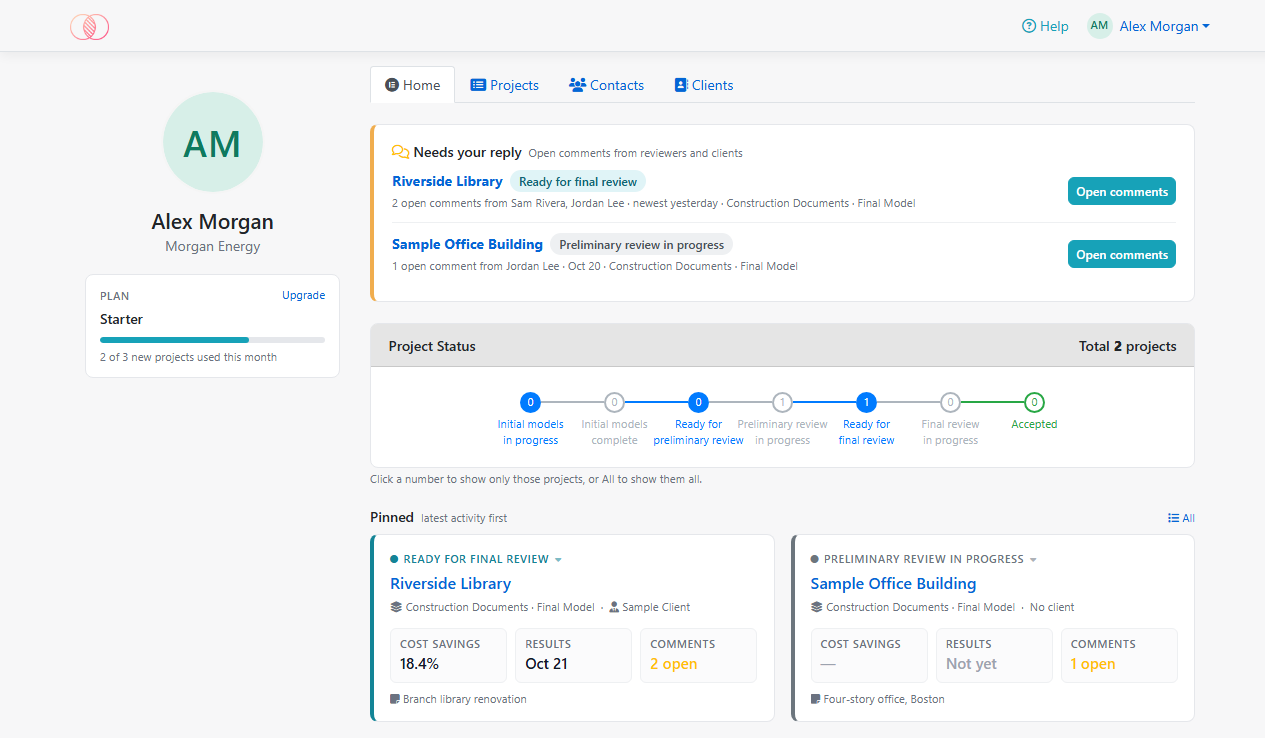
- Needs your reply lists the projects with open comments from reviewers and clients: how many, from whom and when. Select Open comments to go straight to the project’s Comments tab. When nothing is waiting, it isn’t shown.
- Project Status counts your pinned projects by status. Click a number to show only those projects, or All to show them all again.
- Each pinned project’s card shows its status, rating system and client. The boxes show the conclusion’s main figure, such as LEED points or the PCI with Pass or Fail, then Cost savings and open Comments. Before a conclusion is added, the first box says Not yet. A parametric project shows its number of ECMs and when its results were uploaded instead. Point to a box to see its details. The current phase and the results date are under the boxes. The projects with the latest activity come first. Click a card’s status to change it.
- Plan shows your plan and how many new projects you’ve used this month (or billing period).
Your Projects tab
The Projects tab lists all your projects, grouped by client. Projects without a client are under No client.
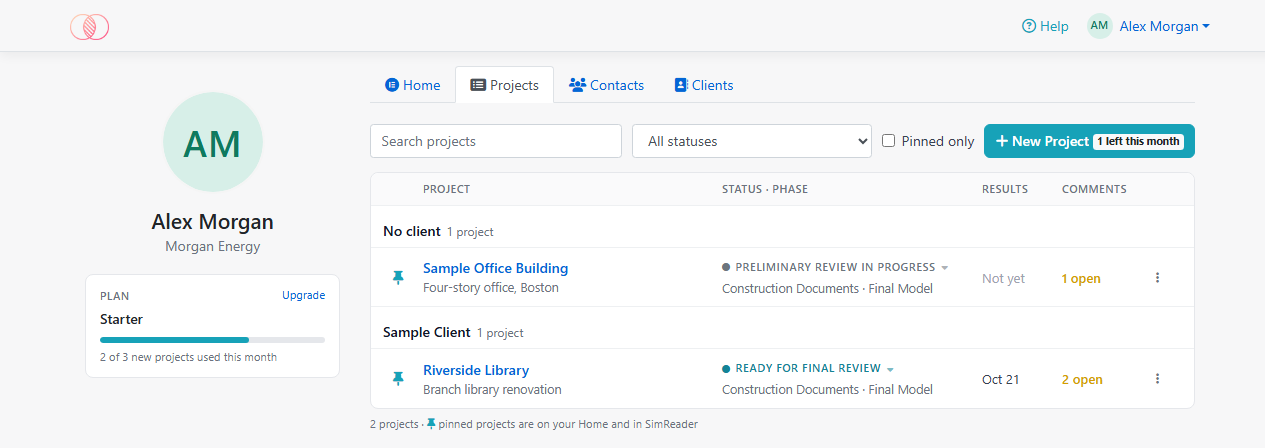
- Type in Search projects to find a project by its name, client or description. Choose a status, or tick Pinned only, to narrow the list.
- Archived projects are hidden. Tick Show archived, or choose Archived as the status, to list them. They show in gray, with no pin.
- Each row shows the project’s status and current phase, when its results were uploaded, and its open comments. Design alternatives are listed under their project.
- A parametric project is tagged Parametric, or Base design only when its current phase’s results have no ECMs. Your client sees Base Design Only too.
- Click a project’s status to change it.
- The pin shows whether the project is pinned: select it to pin or unpin the project.
- The menu (⋮) has Assign Client, Edit Description, Change Analysis Type and Delete.
- New Project shows how many new projects you have left.
Pin the projects you’re working on
Pinned projects are listed on your Home tab, and first under Project Name in SimReader.
- On the Projects tab, select the pin next to the project’s name. It’s teal when the project is pinned.
- On the project page, select Pinned to unpin it, or Pin to Home to pin it.
Modeling phases
Each phase keeps its own results, model inputs, calculations and conclusion. Choose the phase at the top of the project page under Modeling Phase. The phases are:
- Schematic Design: Preliminary Model, Final Model
- Design Development: Preliminary Model, Final Model
- Construction Documents: Preliminary Model, Final Model
- Preliminary Review Model and Final Review Model: the models for each round of review, such as LEED’s preliminary and final reviews or a plan review and its resubmission
- Approved Model
- Post-Construction Model
SimReader uploads results to the phase you choose in its Modeling Phase list, and offers to create the phase if it doesn’t exist yet.
Use the Phase menu next to the phase list to:
- Add a Phase: optionally Copy from the current phase, which copies its model inputs, calculations and conclusion, but not its results or comments.
- Move This Phase: move this phase’s content to a phase that’s still empty.
- Remove This Phase: a project needs at least two phases. To bring a removed phase back, add it again with Add a Phase, or upload it again from SimReader.
Project details
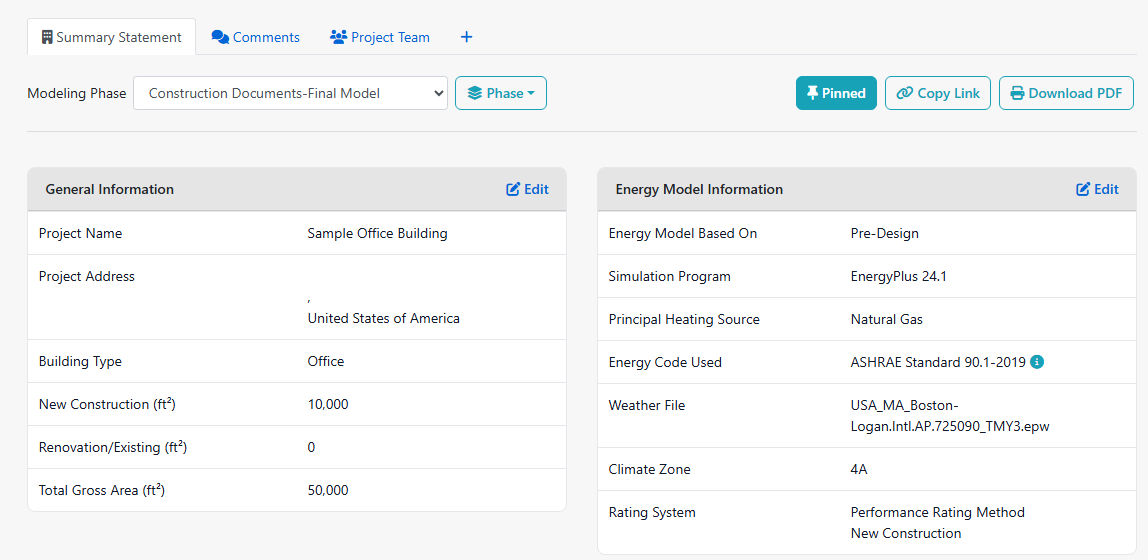
- General Information (project name, address, building type and floor areas): select Edit on its card. The building type and areas are used by Fill Baseline and the performance calculations.
- Status: click the project’s status on the Projects tab or on its Home card, choose the new one and select Save. The status shows on your Home tab and to your client.
- Archived: only you can archive a project. Archiving unpins it, so it leaves your Home and SimReader, and hides it from your client: it leaves their lists and its report no longer opens for them. Choose another status to bring it back; pin it again if you want it on your Home.
- Description: on the Projects tab, open the project’s menu (⋮) and select Edit Description.
- Copy Inputs from Another Project: in Energy Model Inputs, open the menu (⋮). It copies the input rows from one of your other projects.
- Design alternatives: select + after the tabs to attach another of your projects as an alternative. It appears as its own tab.
Clients and contacts
- Clients tab: add the companies you work for. Assign a client to a project with Assign Client in the project’s menu (⋮) on the Projects tab.
- Contacts tab: the people you work with. A contact linked to a client can get an invitation (Send Invitations) to create an InverseHub account and follow that client’s projects. See Clients.
Delete a project
On the Projects tab, open the project’s menu (⋮) and select Delete. This deletes all its phases and results.