Your first project
In about 15 minutes you’ll create a project, upload your baseline and proposed results, show compliance and share a report someone can comment on.
Before you start
- You’re set up: an InverseHub account, and SimReader installed and signed in.
- You have baseline and proposed results:
.SIMfiles from eQUEST, oreplustbl.htmlfrom EnergyPlus or OpenStudio, with utility rates in the models. See Prepare your model output.
Steps
1. Create the project in InverseHub
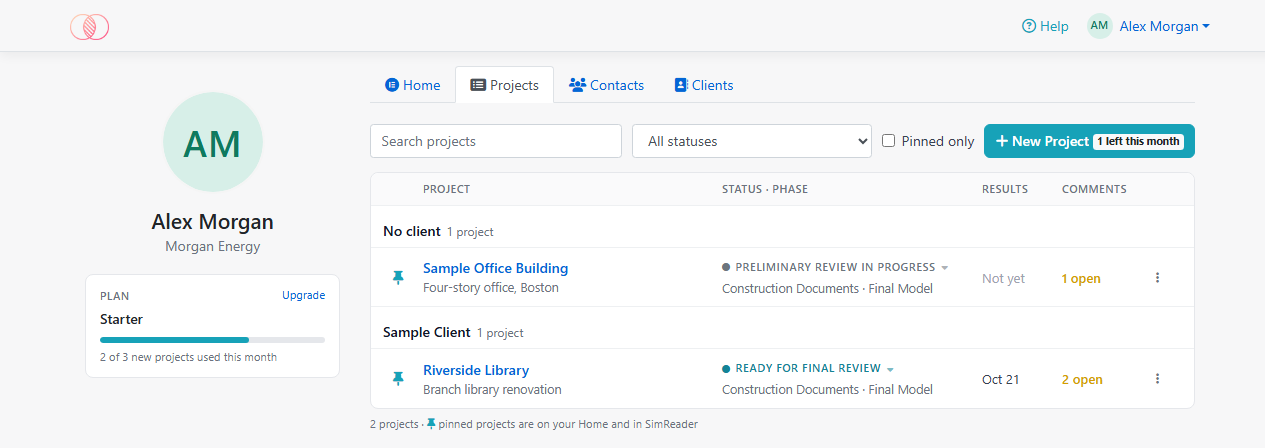
- Sign in to InverseHub and open the Projects tab.
Select New Project.
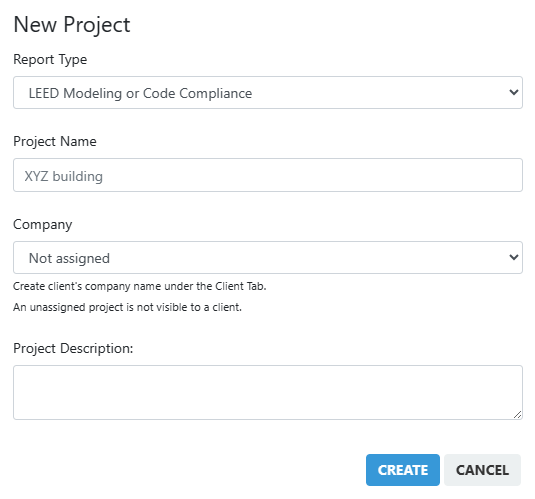
- Choose the Analysis Type:
- Standard Baseline: your proposed design against an energy code baseline (code compliance, LEED). Pick this if you’re unsure.
- Custom Baseline: against a baseline you define, such as an existing building or an earlier design.
- Parametric Analysis: a base design against energy conservation measures (ECMs), or one design on its own: upload just the base design.
- Enter a Project Name. It doesn’t need to be unique. Optionally choose a Client and add a Project Description.
Select Create.
SimReader lists all your projects, pinned ones first. You can also create the project from SimReader: under Project Name, choose + New InverseHub project….
2. Upload your results from SimReader
- Open SimReader on its Project page. Under Project Name, choose your project. Select Refresh if it isn’t listed yet.
- Choose the Modeling Phase these results belong to. The phase and client come from InverseHub; Reload from InverseHub fetches them again.
- Analysis Type comes from the project. If SimReader switches it, check that your files are in the right lists.
- Add your files: drag them onto the Baseline(s) and Proposed tiles, or select a tile to browse.
- Add several baseline runs (for example four orientations) and SimReader averages them.
- The first file in each list supplies the utility rates and unmet load hours. Use the arrows to change the order.
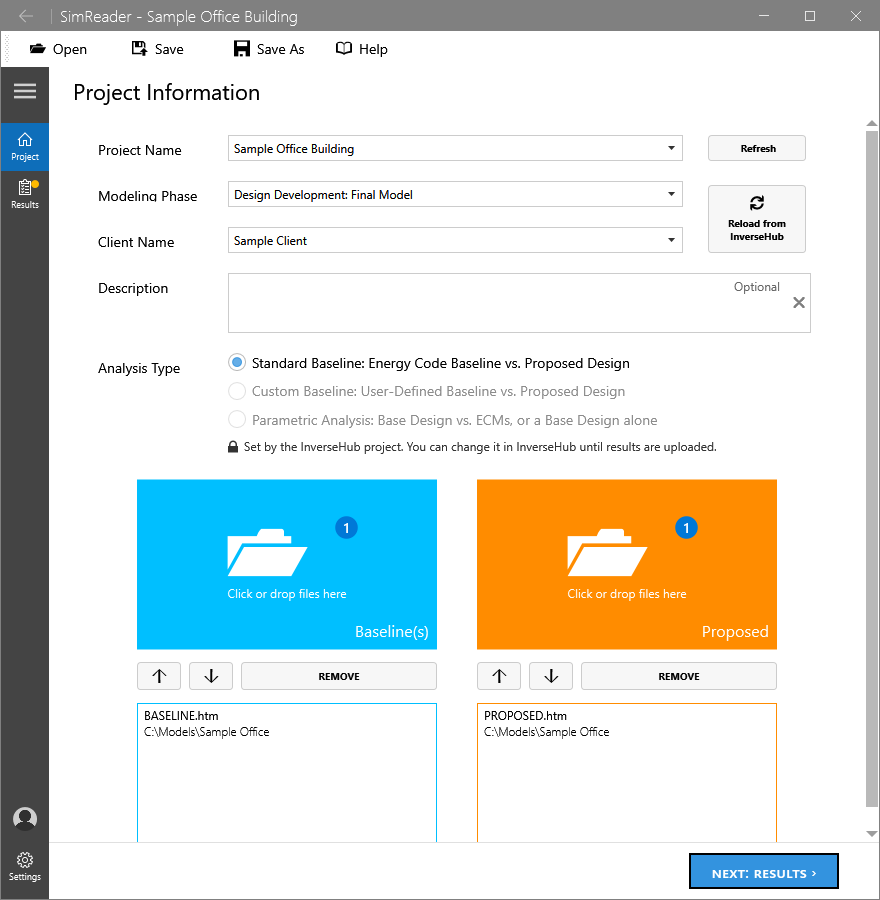
- Select Next: Results. SimReader reads the files and shows the utility rates, energy by end use, total performance and simulation information.
Check the numbers, then select Upload to InverseHub.
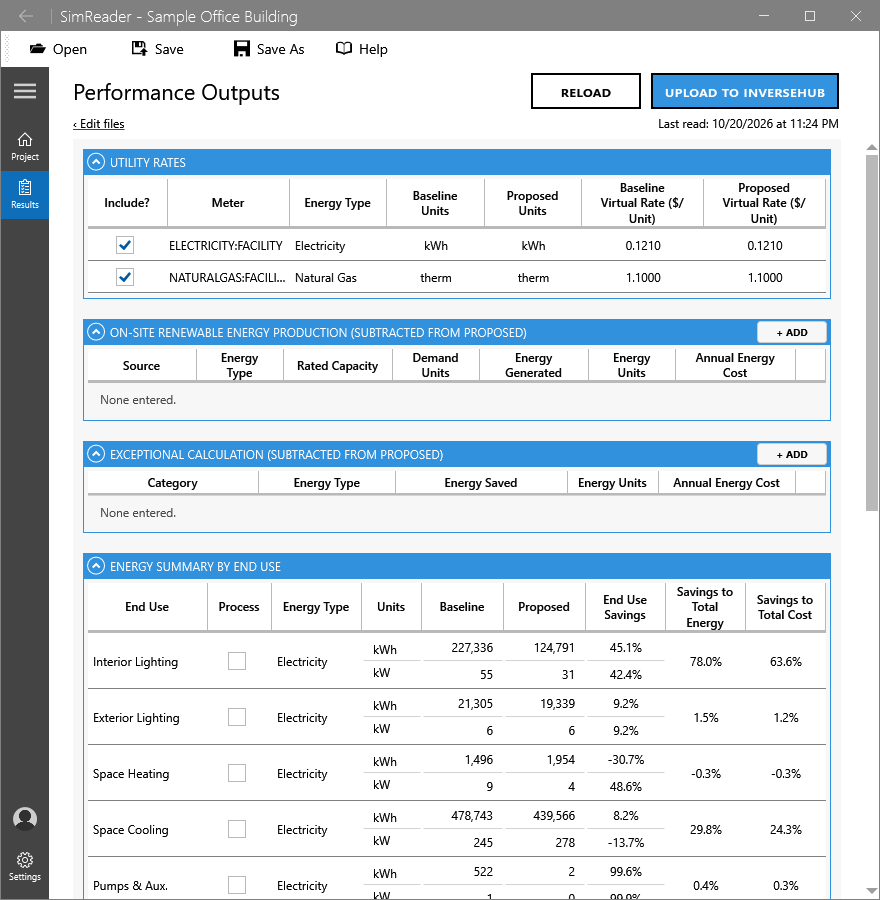
If the phase doesn’t exist on InverseHub yet, SimReader offers to create it. If the phase already has results, it asks before replacing them. When the upload is done, Copy Review Link copies the link to send your client or reviewers.
3. Complete Energy Model Information
- Refresh the project page in InverseHub. Your results appear under the phase you uploaded, and Simulation Program and Weather File are filled in from the files.
- In Energy Model Information, select Edit and choose:
- Energy Code Used: search by name or state. The (i) next to it summarizes what InverseHub does for that code.
- Climate Zone and Principal Heating Source.
- Rating System: only the compliance paths of the code you chose are listed, plus certifications such as LEED.
- Select Save.
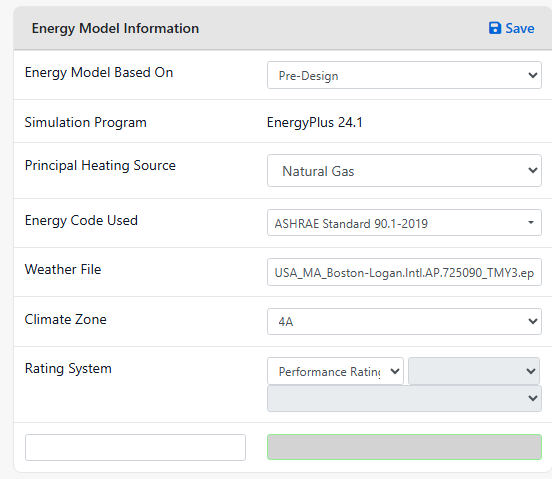
4. Fill in Energy Model Inputs
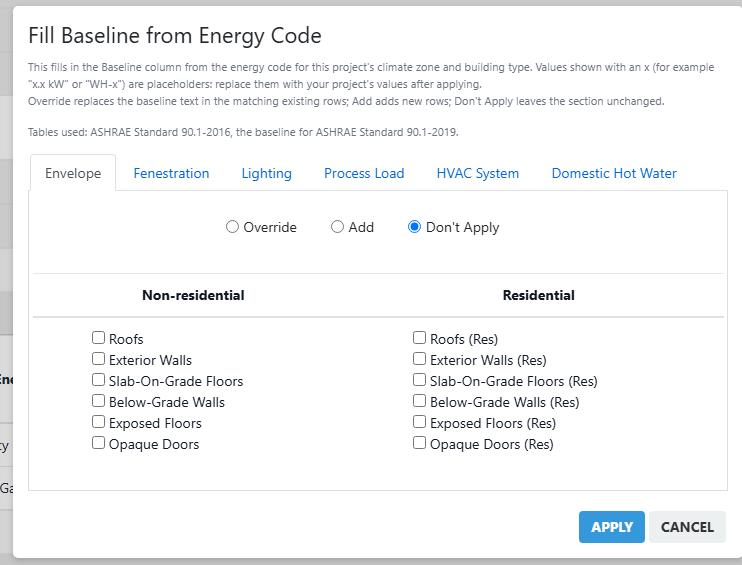
- In Energy Model Inputs, open the menu (⋮) and select Fill Baseline from Energy Code.
- On each tab (Envelope, Fenestration, Lighting, Process Load, HVAC System, Domestic Hot Water), choose:
- Add to add the rows you tick,
- Override to replace the baseline text of rows you already have, or
- Don’t Apply to leave that section alone.
- Select Apply. The Baseline column fills in from the energy code for your climate zone and building type.
- Fill in the Proposed column yourself.
More in Fill in Energy Model Inputs.
5. Show compliance
- Under Performance Calculations, select +.
Enter the floor area of each building area type. InverseHub weights the code’s building performance factors (BPFs) by these areas. Then select Add Calculations.
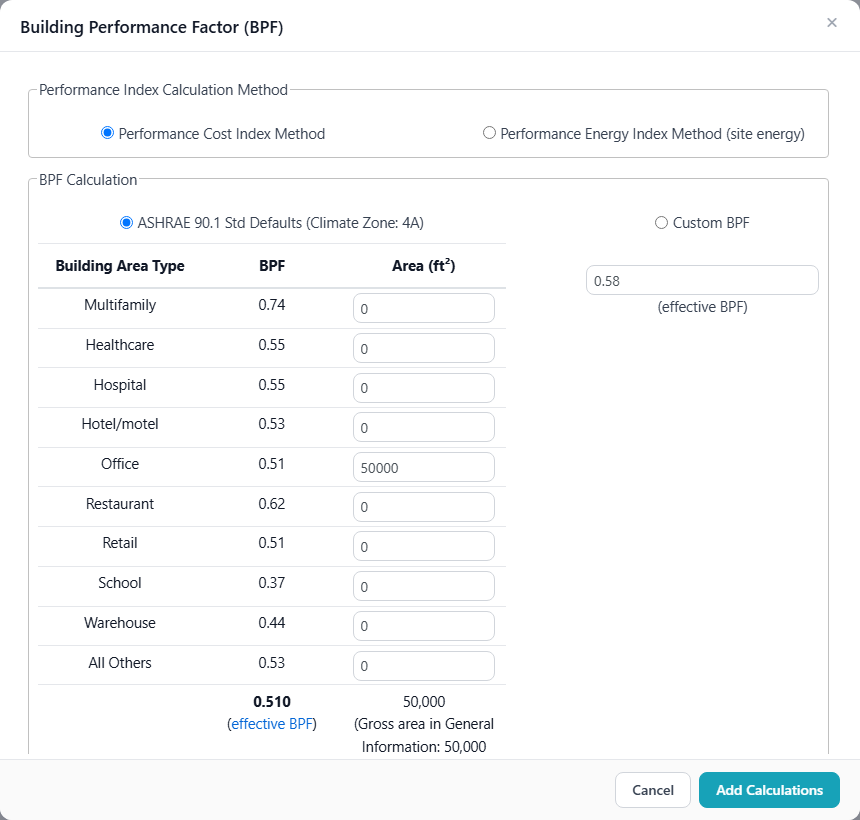
- Under Conclusion, select +. InverseHub writes the pass or fail statement from your results.

The calculation depends on the energy code and rating system. Total Building Performance, the Energy Cost Budget Method and the IgCC performance option each have their own. See Show compliance.
6. Share the report
- As a link: select Copy Link at the top of the project page and send it. Anyone with the link can view the phase selected on your project page, and comment after confirming their email with a code. No account is needed.
- As an invitation: on the Project Team tab, select Add from Contacts, select the person’s card, then Email Invitation. Their email’s Access Report button lets them comment right away.
- As a file: select Download PDF.
When someone comments, you’ll find it on the Comments tab. See Share and handle comments.
What’s next: Projects and phases · How results are calculated