Set up InverseHub and SimReader
You need an InverseHub account to create projects, and SimReader to upload results from your computer.
On this page
1. Create your InverseHub account
- Go to inversehub.com and select Sign up, or select Create a free account in SimReader’s sign-in dialog (Settings > Sign in).
- Enter your email and a password. The password needs at least 6 characters, with an uppercase letter, a lowercase letter, a digit and a symbol.
- Open the confirmation email and select the link. You can sign in once your email is confirmed.
Every account starts on the free Starter plan, with 2 new projects a month. See Subscription plans for more.
2. Install SimReader
SimReader is a free Windows app that reads your simulation reports and uploads them to InverseHub.
- Install it from the Microsoft Store.
3. Sign in to SimReader
Open SimReader and select Settings at the bottom of the side menu.
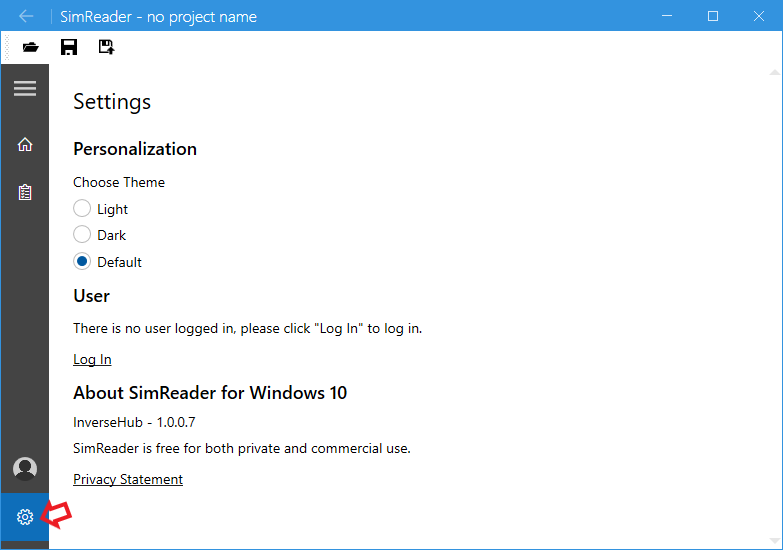
- Under User, select Sign in.
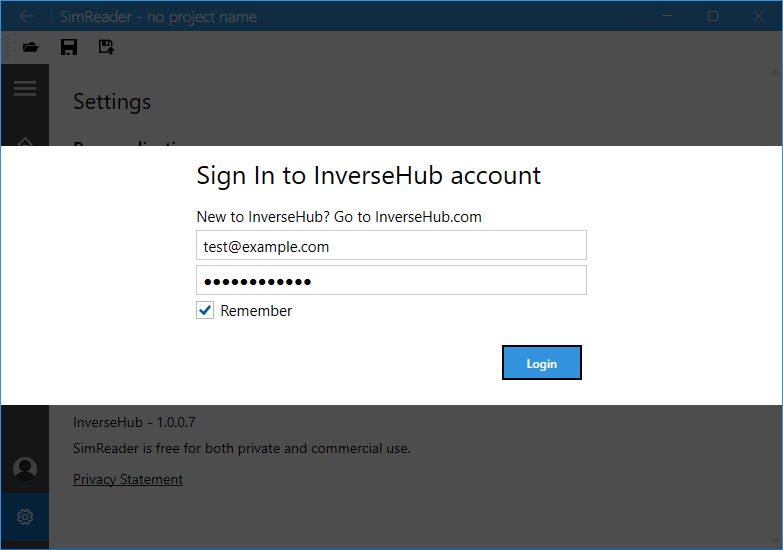
- Enter your InverseHub email and password, then select Sign in. With Remember me ticked, as it is to start with, SimReader stays signed in on this computer until you sign out. It keeps an encrypted sign-in, never your password. On a shared computer, untick it: you’re then signed in until SimReader closes.
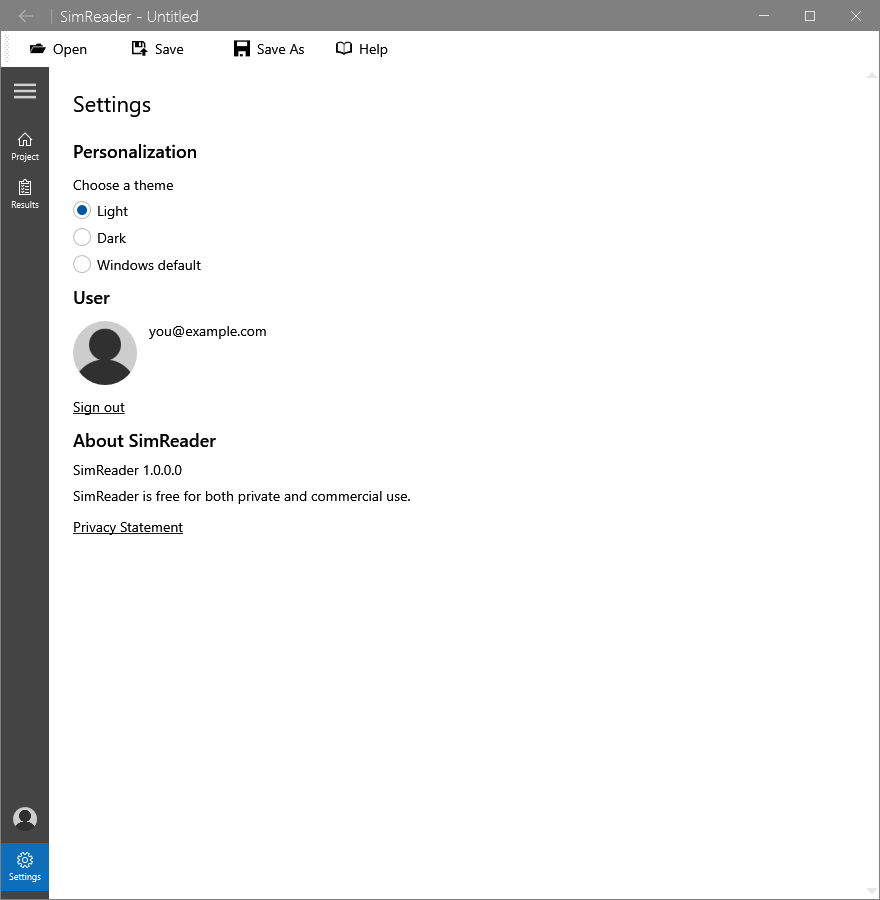
When you’re signed in, the User section shows your email, how long you stay signed in, and a Sign out button. To open InverseHub already signed in, use the InverseHub menu on SimReader’s toolbar (see Open InverseHub from SimReader).
Before your first upload
- Utility rates in the model. InverseHub compares the designs by energy cost, so each model needs its utility rates.
- The right reports. eQUEST writes what SimReader needs by default. EnergyPlus and OpenStudio need a few extra output tables. See Prepare your model output.
Next: Your first project