Review a shared project
Someone shared an InverseHub report with you. You can read it and comment on it without an account: to comment, you confirm your email once with a code.
Read the report
Open the link from the modeler’s email or message. The page shows one modeling phase of the project, starting with a summary.
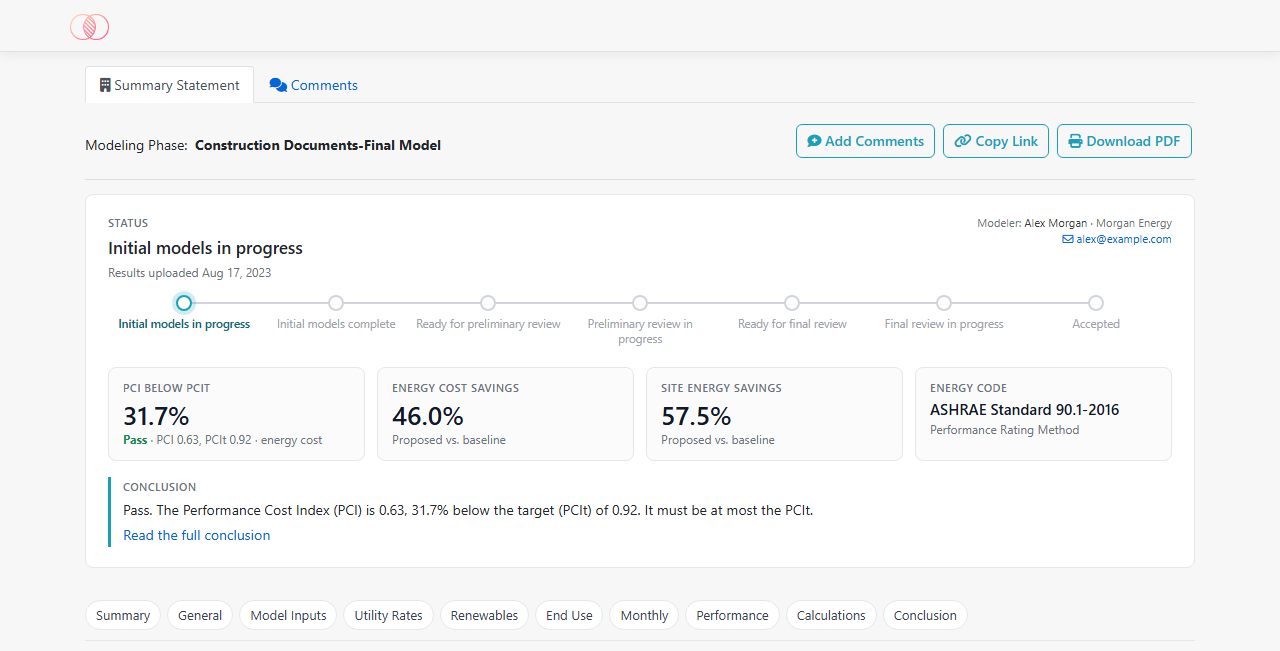
- The summary shows where the project stands: its status and the steps still to come, when the results were uploaded, and the modeler and their email.
- Its tiles show the results that matter for the project’s purpose, followed by the energy code:
- LEED: the points for the Optimize Energy Performance credit and the metrics they come from, such as energy cost savings and the GHG reduction;
- a compliance path: how far the design is below or above its target, such as the PCI against the PCIt, with Pass or Fail;
- 179D: the estimated deduction;
- otherwise: the energy cost savings, the annual cost savings and the site energy savings.
- These figures come from the modeler’s conclusion. If the results were uploaded again after it, a note says so. For a conclusion added before October 23, 2026, they’re worked out from the results the same way. The summary ends with the start of the conclusion. Select Read the full conclusion to jump to all of it.
- The section links under the summary take you to each part of the report: General, Model Inputs, Utility Rates, End Use, Monthly, Performance, Calculations, Conclusion and others, depending on the project. A number on a link counts the open comments in that section. Top at the bottom right brings you back up.
- Model input rows with nothing entered are left out, so you only read what the modeler filled in.
- Download PDF saves the report as a file.
- Copy Link copies the page’s link, to pass it on to a colleague.
- The Comments tab lists every comment on this phase, with the modeler’s replies.
Comment on the report
- Point to the value you want to comment on and click the comment icon that appears next to it. On a phone, tap the value. Or select Add Comments.
- The first time, enter your name and email, then select Send Code. Enter the 4-digit code we email you, then select Confirm. The code works for 15 minutes.
- Type your comment and save it.
Your browser then remembers you for 30 days. The top of the report shows Commenting as your name; select Not you? to switch, for example on a shared computer.
For a comment on the whole report rather than one value, open the Comments tab, type it in the box at the top, and select Add Comment.
You can edit or delete your own comments: select one in the table, or select Edit next to it on the Comments tab, and choose Edit Your Comment. Other people’s comments are read-only for you.
Invited by the modeler? The invitation email’s Access Report button lets you comment without a code. On another device, confirm the email the invitation came to with a code.
The modeler chooses who can comment through the link. If the report shows View only, only the client can comment: you can read it and download the PDF. If only the client and invited reviewers can comment, use the email your invitation came to.
Send your comments to the modeler
When you’ve finished commenting, tell the modeler in one go:
- Open the Comments tab.
- Select Send my comments to the modeler.
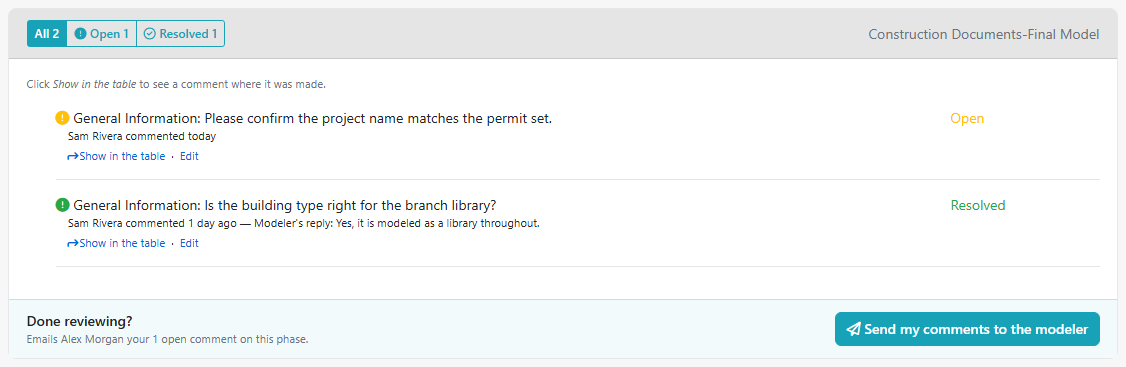
The modeler gets one email listing your open comments on this phase, with a link to the project. The button shows when you have open comments on the phase. If you add more later, send again: each email lists all your comments that are still open.
On the Comments tab you can also:
- choose All, Open or Resolved to filter the list;
- select Show in the table to jump to the value a comment is on, highlighted for a moment.
Replies
When the modeler replies to your comment or resolves it, you get an email with their reply and a link back to the report. The reply also appears under your comment and on the Comments tab. A resolved comment means the modeler considers it addressed.